
Logitech MX Brio Ultra HD 4K Webcam Review & Guide

The Logitech MX Brio Ultra HD 4K Webcam delivers crisp video for professionals and creators. If you seek a reliable 4K webcam, this model tops many lists. This review balances real-world performance, features, and value. Read on to learn about the camera’s image quality, specs, price, and setup tips. The Logitech MX Brio Ultra HD 4K Webcam appears often in streaming and conference room setups. I explain how it performs, who should buy it, and how to maximize results.
Logitech MX Brio Ultra HD 4K Webcam: Key Features
The MX Brio focuses on high-resolution video and smart imaging. It supports up to 4K resolution for crisp detail. It includes HDR and a wide field of view. Autofocus works fast and accurately. The camera houses dual omnidirectional microphones for clear voice pickup. Logitech provides software that enables light correction and background removal. These features matter if you broadcast, record, or attend high-stakes meetings.
- 4K Ultra HD resolution with HDR for accurate color
- RightLight technology for improved low-light performance
- Adaptive field of view and digital zoom options
- Built-in microphones with noise reduction
- Privacy shutter and adjustable mount
Recommended Products
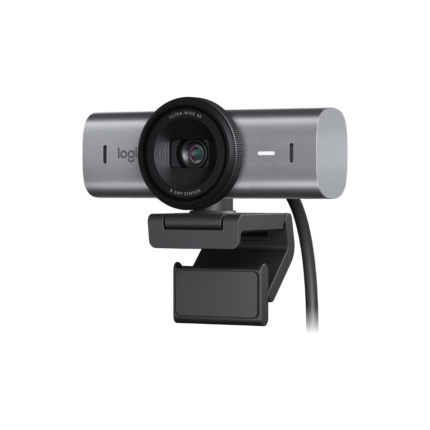
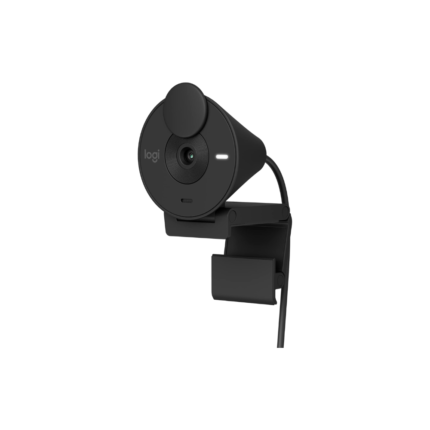
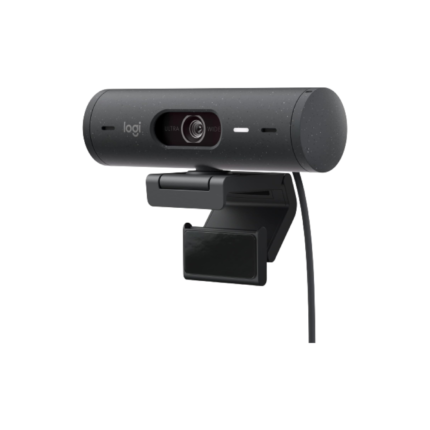
Performance and Image Quality: logitech mx brio ultra hd 4k webcam specs
The camera produces sharp images in well-lit environments. 4K at 30fps provides excellent detail for presentations and product demos. It scales down to 1080p and 720p for bandwidth flexibility. RightLight HDR balances exposure in bright windows. Color accuracy improves with the included software. Autofocus tracks faces smoothly. The result feels professional.
Low-light performance stands out compared to many built-in laptop cameras. RightLight reduces shadows and recovers detail. Still, extreme low light will reveal noise. For best results, add a soft front light. Use a ring light or LED panel for studio-like quality.
Audio and Microphone Quality
Logitech equipped the MX Brio with dual mics. They capture clear speech for small meeting rooms. The microphones reduce background noise effectively. Still, a dedicated USB mic beats the onboard mics for podcasting. For calls and streaming, the built-in mics perform very well.
Field of View and Framing
The webcam offers adjustable field of view settings. Choose between narrow for headshots and wide for group shots. Digital zoom lets you crop without physical movement. Keep in mind that heavy zoom reduces effective resolution. Frame participants at eye level for the most natural appearance.
Software and Setup: logitech mx brio ultra hd 4k webcam features
Logitech’s software unlocks advanced controls. With Logi Tune, you can tweak exposure, white balance, and zoom. The software also enables background blur and removal. These tools help with privacy and branding. Setup requires a single USB-C connection. Most systems recognize the webcam automatically. Windows, macOS, and major video apps work with the device.
- Logi Tune: exposure, color, zoom, and preset modes
- Background effects: blur, replace, or remove
- Compatibility: Zoom, Teams, Meet, OBS, and popular streaming tools
logitech mx brio ultra hd 4k webcam price and Value
Price fluctuates across retailers. Expect a premium price given the 4K capability. Compare sales and bundles to find deals. Evaluate price against use case. If you need true 4K and HDR, the cost makes sense. If you only need 1080p for occasional calls, a less expensive webcam can suffice.
- Consider whether you need 4K for daily use
- Check for bundle discounts with mounts or lighting
- Factor in longevity and software updates
Buying Tips: logitech mx brio ultra hd 4k webcam buying guide
Identify your primary uses before purchasing. Do you stream, hold video interviews, or record tutorials? If you stream content or record product demos, prioritize 4K and color fidelity. For meetings, 1080p often works well. Check your connection and system specs before buying. 4K requires more bandwidth and CPU power. Use a USB-C port with sufficient throughput for stable performance.
Consider these steps before checkout:
- Verify platform compatibility and app support
- Test your lighting environment or plan to add lights
- Ensure your PC has resources for 4K capture and streaming
- Compare warranty and return policies
Setup Checklist and Quick Optimization
Follow this checklist for optimal results. First, mount the webcam at eye level. Second, position a soft light in front of you. Third, use Logi Tune to set exposure and color. Fourth, pick a clean, non-distracting background or use background removal. Fifth, test audio levels and use headphones if echo occurs. These steps deliver consistent, professional video output.
- Mount at or slightly above eye level
- Light the face evenly from the front
- Use Logi Tune presets for quick adjustments
- Test bandwidth and lower resolution if unstable
Who Should Buy It? Best logitech mx brio ultra hd 4k webcam Use Cases
This webcam fits power users and small studio setups. Creators benefit from 4K for high-detail recordings. Corporate presenters gain a more professional look. Remote workers who host client-facing calls will see clear benefits. Casual users on tight budgets might find 1080p models more cost-effective.
- Content creators needing high-detail recording
- Professionals who present to clients daily
- Small teams running remote, high-quality meetings
- Streamers who want crisp visuals and wide field of view
Accessories and Complementary Gear
Pairing the MX Brio with simple accessories improves output. A desktop LED panel provides even lighting. A small shotgun mic or USB condenser mic upgrades audio. A flexible arm or monitor clamp stabilizes framing. Use quick-release mounts for multi-device setups.
Alternatives and Comparison
Several webcams target prosumers and streamers. Some prioritize low-light performance. Others focus on integrated ring lights. Compare these areas based on your priorities. If color accuracy and resolution top your list, the MX Brio competes strongly. If you need built-in lighting, consider other models or add lights separately.
Practical Example: Setting Up for a Product Demo
Place the MX Brio on a small tripod angled downward slightly. Light the product with a softbox while keeping the subject in focus. Use 4K to capture text and small details. Record a short test clip and check exposure. Adjust white balance to keep colors neutral. Export in 4K for the highest quality upload.
Frequently Asked Questions
Is the Logitech MX Brio worth the investment?
The camera offers excellent 4K video, HDR, and reliable autofocus. For creators and professionals who value image quality, it justifies the cost. For casual video calls, a 1080p webcam may suffice.
What is the difference between 4K and 1080p on this webcam?
4K provides four times the pixel count of 1080p and captures finer detail. Use 4K for recording and cropping. Choose 1080p when bandwidth or CPU limits streaming performance.
Conclusion
The Logitech MX Brio Ultra HD 4K Webcam delivers professional-grade video and flexible software control. It suits creators, presenters, and remote professionals who prioritize image quality. If 4K, HDR, and advanced controls matter, this webcam is a strong choice. Use proper lighting and Logi Tune to extract the best results. The Logitech MX Brio Ultra HD 4K Webcam balances features and performance for serious users.